 COME
COMECOME Latest Release Changes: Read the Version Record
For understanding the latest release changes, separate an installed version, a current listing and a dated release note before comparing releases.
If a menu looks different after an update, compare the same account, category and language. A moved control is different from a removed function, and a new article date is different from an APK release date.
Keep three dates separate
An article update date tells you when the article changed. A file download date tells you when your phone received a copy. A release date belongs to the software publisher's release record. Those dates can differ, so none should be silently substituted for another when looking for an old or new COME version.
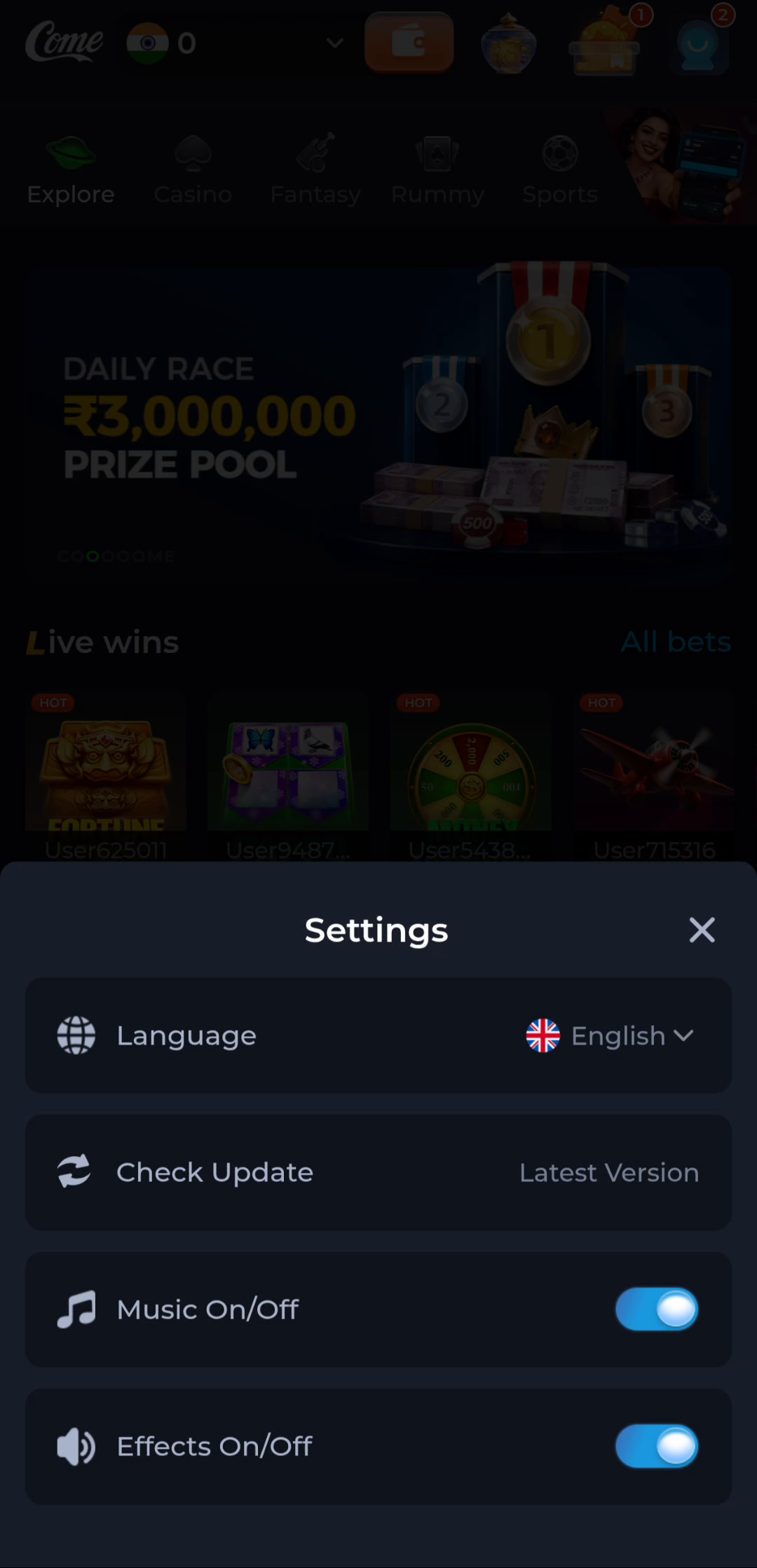
Start with the installed version shown by Android, if you already have the app. Then use the product's Check Update route and read the release offered there. Keep the version text exactly as displayed. A marketing label such as latest or new is less precise than a specific version tied to a source and date.
Build a useful comparison
For each release, record its version, source, published date when present and the change description. Leave an absent date unanswered. A filename containing a year is not a release history, and a file with a larger number in its name is not automatically an authentic successor.
Compare a particular task you care about, such as opening an account screen or finding an update control. A before-and-after screenshot can show a visible difference, while the release notes can explain an announced change. Neither alone proves that every device or account receives the same behaviour.
An older label is not an available archive
This website does not host an old-version archive. Do not treat a historical mention as a working download. If the product does not offer a particular older build, avoid substituting an unrelated mirror merely because its filename matches a remembered number.
Keep an existing working installation while investigating a failed update. Replacing it can remove local data or access needed to describe the problem. A recorded error and two clearly identified releases are more useful than a folder full of uncertain APK copies.
Finish with an answer to one comparison
A useful result might be that the installed version matches the offered version, that an update is offered, or that the history for a requested release is unavailable. Each is a valid outcome. Keep the unresolved item precise instead of inventing a chronological list from search snippets.
Apply this to understanding the latest release changes
Use the current product update route, compare the installed version and read the accompanying release information. The listing labels shown on this page are dated reference values; the package actually offered to your device is the next comparison.
In this situation, complete the relevant check before repeating another stage. Separate an installed version, a current listing and a dated release note before comparing releases. Keep the result with the exact screen or file so a later step can use it instead of starting the whole process again.
A practical completion check
- Record the installed version separately from the article date.
- Read the current product release information.
- Compare only versions and changes tied to an identifiable source.
Questions about this task
Is the page date the APK release date?
No. Use a release date explicitly associated with the software version.
Does this page offer archived APKs?
No. It explains how to assess version information and the current product route.
A related next step
For understanding the latest release changes, compare the installed app with the offered release and distinguish an update check from a new installation.